









 Fabian
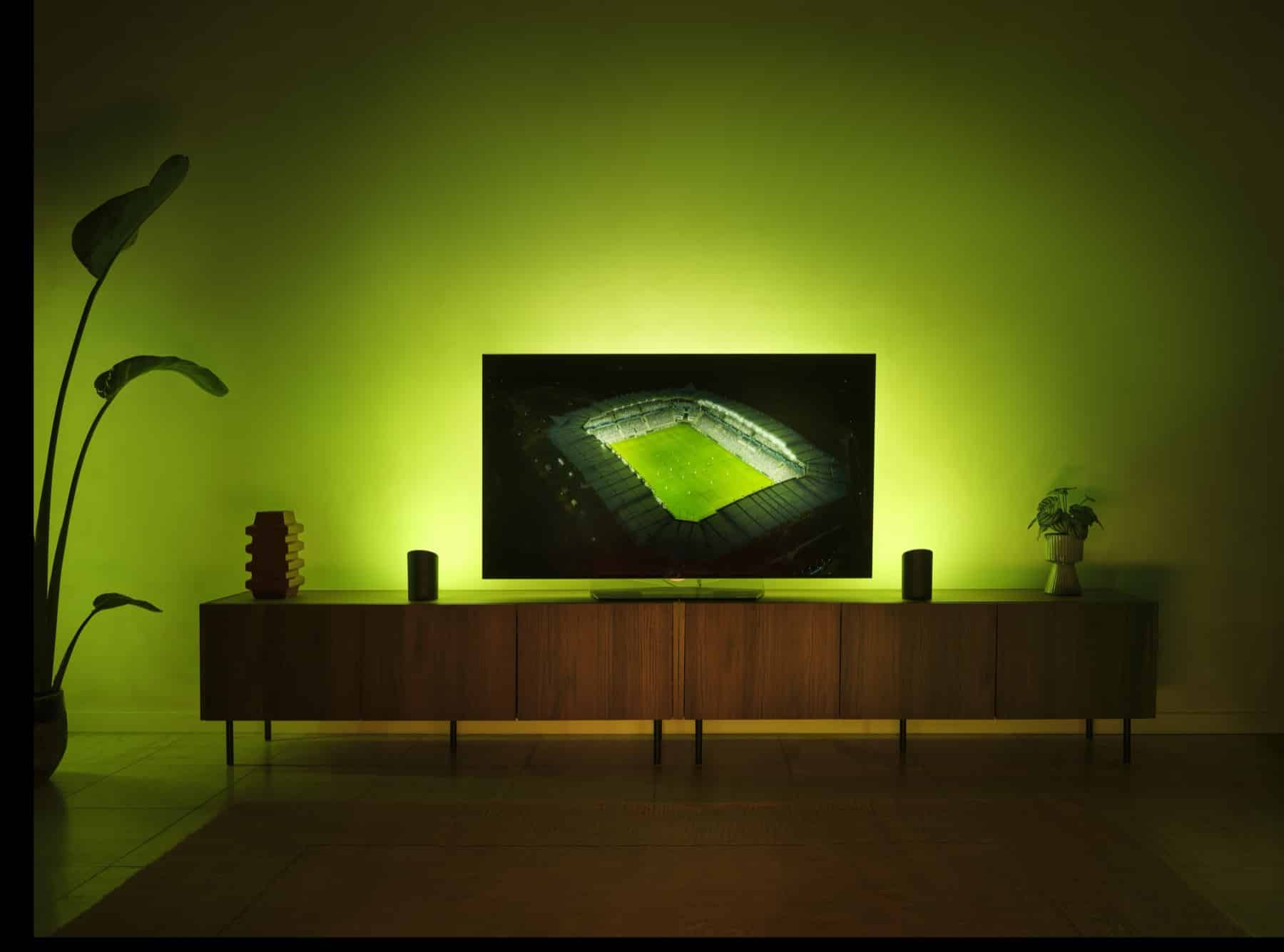
Just in time for the upcoming start of the World Cup in Mexico, Canada, and the U.S., Philips Hue has released another update for its app. And for good reason: this update unlocks the new Sports Live feature. As previously explained in detail, you can use it to make your lights glow in sync with game events during the World Cup.
You’ll have your first chance to try out the new feature on Thursday, when Mexico and South Africa play the opening match. But what exactly do you need to set up in the Hue app?
How to set up Sports Live in the Philips Hue app
You simply start with the Sync tab in the Hue app. If no feature is set up there yet, tap “Let’s go”; otherwise, tap the small ‘What’ icon in the lower left corner. There, you can then select “Sports Live: 2026 World Cup.” In the next menu, you can select your favorite teams to receive match suggestions right away. But this isn’t a must, just like the subsequent selection of the matches you want to follow.
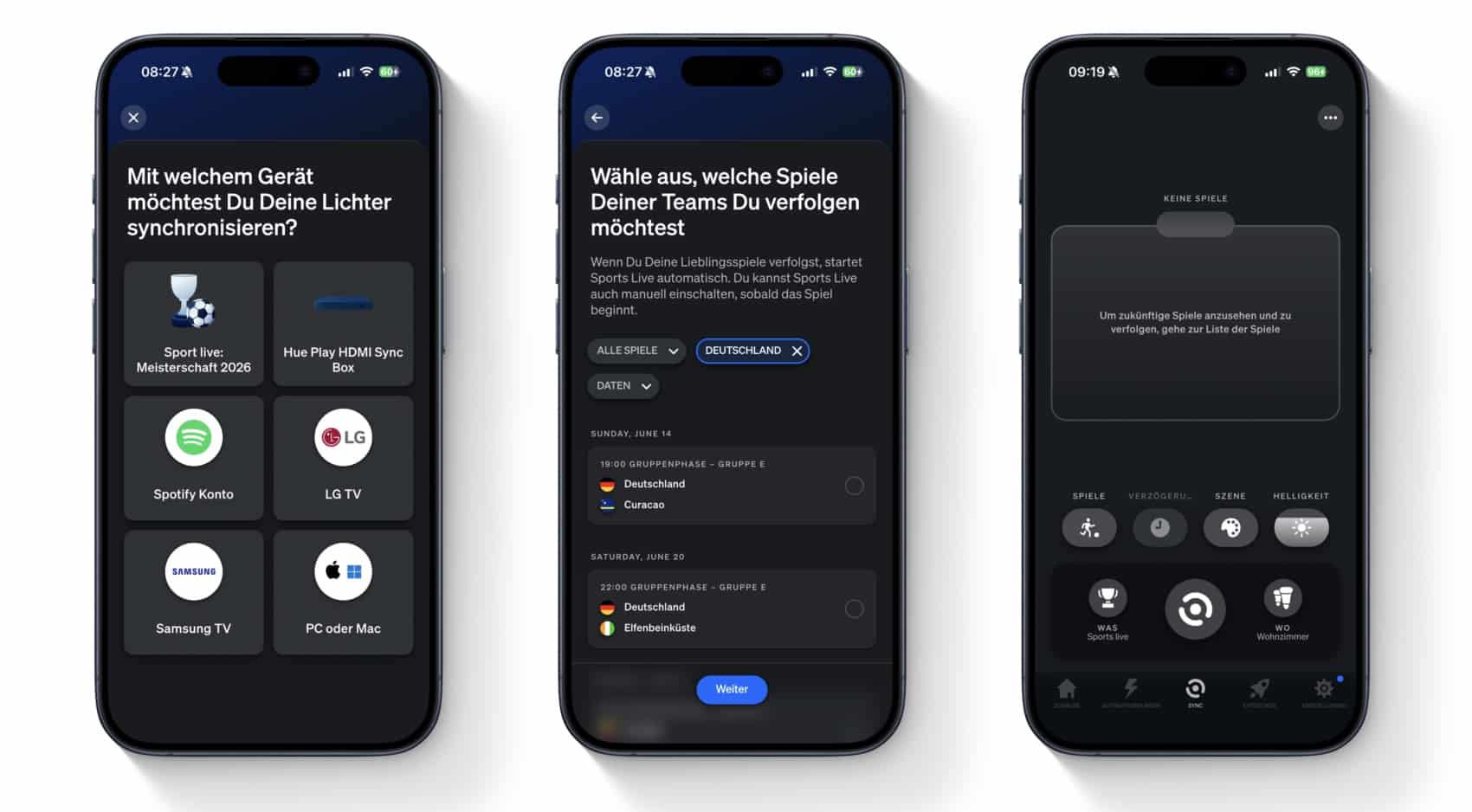
More important is the question of the room or zone where Sports Live should operate. You can’t select specific lights here, but there should at least be one color-capable light available. Also important: If you use Hue Sync, for example with the Sync Box, the lights paired with it take priority and will not be used for Sports Live. Once you’ve selected the room and the desired default scene, you’re ready to go.
Current games should appear directly in the Sync tab; there’s a list for future games. If you select a game here, Sports Live automatically starts 15 minutes before kickoff. Using the Sync button right next to it, you can adjust the delay during the broadcast. You can also still customize the standard scene, brightness, and room. I personally still need to figure out exactly how Sports Live behaves during a game.
New Zone for the Entire Bridge
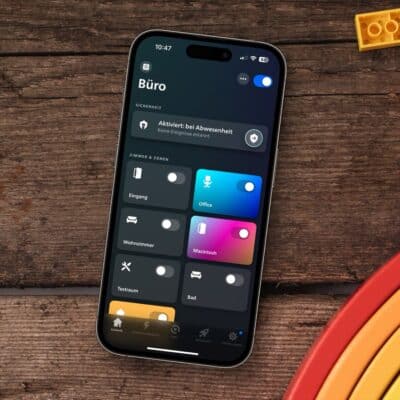
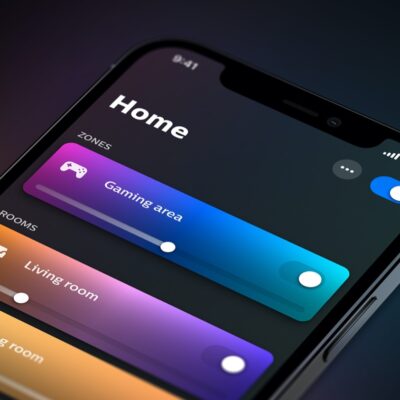
The following feature has been added with the update: “A new Bridge group is now available on your home dashboard, consolidating all devices and automations in one place. You can now create scenes for the entire Bridge and hide or rearrange groups using the edit option.”
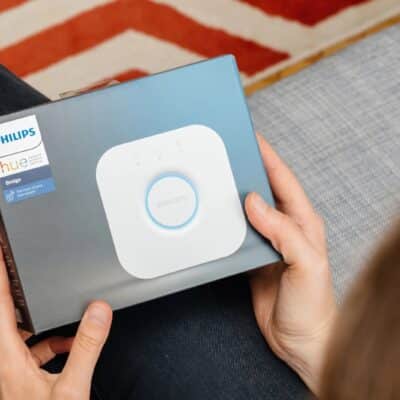
Basically, it’s a zone containing all the rooms and lights in a Bridge. Maybe you can make use of it. On my app’s home screen, the new Bridge zone was initially placed in the “Hidden” section and was therefore not immediately visible.
Essentially, it’s a zone containing all the rooms and lights in a Bridge. Maybe you can make use of it. On my app’s home screen, the new Bridge zone was initially placed in the “Hidden” section and was therefore not immediately visible.


Well, I did hope we could use a switch from one bridge on a lamp on another bridge